
iRacing Beginner Guide: Start Racing and Spend Less
This iRacing beginner guide covers wheel setup, rookie licenses, Safety Rating, practice modes, and smart spending to help you enter your first race ready.
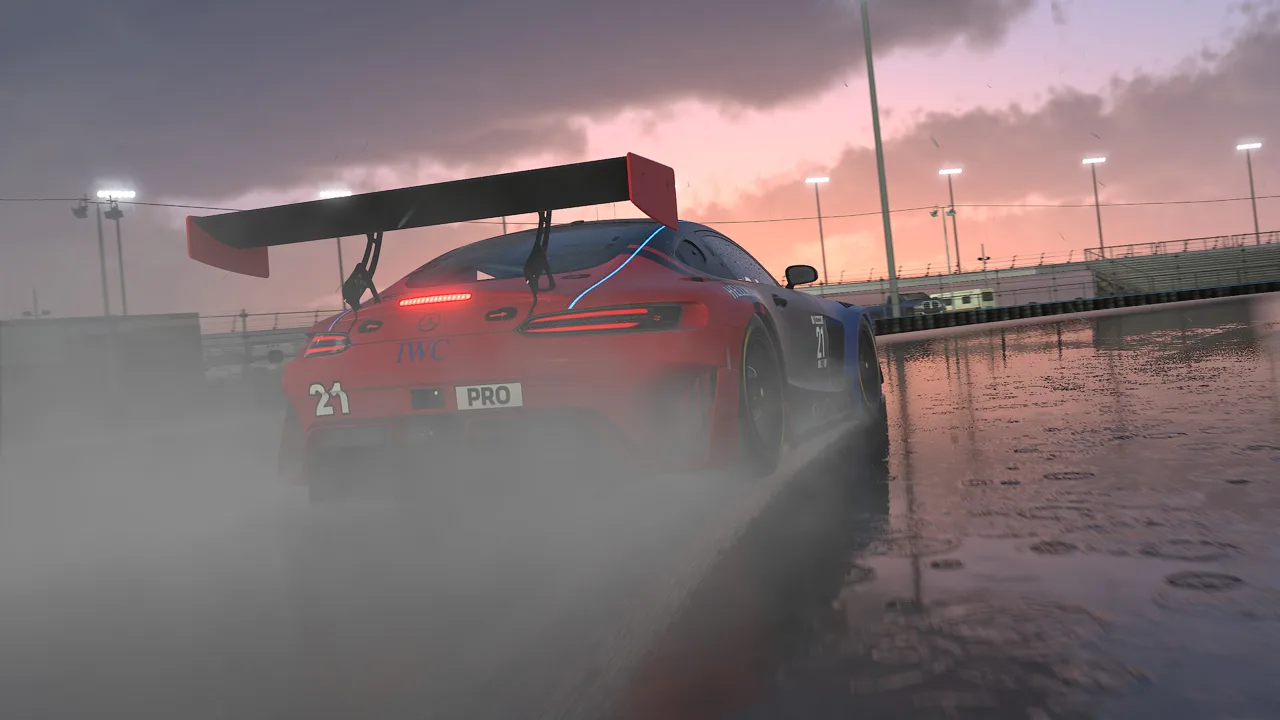
Your first clean finish can feel like a win before you ever reach the podium. This iRacing beginner guide walks you through the setup, practice, and racecraft that help you reach that finish without buying a garage full of cars. Start with included content, learn one car, and build enough consistency to enjoy racing other people.
Start With the Membership and Hardware You Need
1. Understand what your subscription includes
iRacing combines a recurring membership with separate purchases for additional cars and tracks. Your membership includes the content needed to start Rookie racing, so you can learn the service before spending more.
Keep those costs separate when budgeting.
Compare offers before creating your account. Membership promotions and Black Friday renewal sales can reduce subscription costs, but use the price and eligibility terms shown at checkout.
You can start an iRacing membership through the official website.
2. Get a stable setup before chasing expensive equipment
Entry-level equipment such as a Logitech G29 or G920 can get you started. A controller is also supported, although a wheel and pedals are strongly recommended for learning the driving model.
Mount the wheel securely and keep the pedals from sliding.
For the PC itself, these are the Windows requirements:
| Component | Minimum | Recommended |
|---|---|---|
| Operating system | Windows 11 64-Bit | Windows 11 64-Bit |
| Processor | 4 core CPU or better | 8 core or more CPU |
| Memory | 16 GB RAM | 32 GB RAM |
| Dedicated graphics memory | 6GB | 8GB |
| Available storage | 25 GB | 100 GB |
Both configurations require a broadband internet connection. Start with graphics settings that keep performance stable, then test them with other cars on track before entering a race.
Set Up Your Controls Before Going Online
 Image: www.iracing.com
3. Calibrate steering and pedals in Test Drive
Launch a solo Test Drive with an included car and track. Open the controls settings and follow the calibration prompts for your steering wheel, throttle, brake, clutch, and shifter.
Check the input displays afterward:
- Center the wheel and confirm that the steering input centers correctly.
- Release the pedals and check that neither throttle nor brake remains applied.
- Press each pedal through its calibrated range.
- Select the load cell option only when using a load cell brake.
- Test upshifts and downshifts before leaving the pits.
If your foot resting on the brake creates an unintended input, adjust the calibration or pedal software dead zone.
Learn braking pressure for the car you are driving.
4. Map the buttons you need while driving
Put frequently used controls within easy reach. Keep Enter/Exit/Tow accessible but away from buttons you might press accidentally.
Set up these controls before racing:
- Relative black box: Shows nearby cars and their time gaps.
- Look left and right: Helps with awareness on a single monitor.
- Pit speed limiter: Useful in cars equipped with one.
- Enter/Exit/Tow Car
- Windshield wipers
Enable the built-in spotter and make its calls easy to hear. Raise tire audio relative to engine and ambient sounds so you can better hear changes in grip.
Use Alt+K to arrange the interface. Keep your mirrors, Relative display, flags, and penalty messages visible without covering your view of the track. The built-in Visual Spotter provides another way to monitor nearby cars.
5. Make force feedback informative and the cockpit readable
Begin with comfortable force feedback strength. Reduce the strength if steering feels too heavy.
On a single screen, combine the view with look controls, mirrors, and spotter calls to monitor cars alongside you.
Choose One Rookie Car and Learn Its Schedule
6. Pick a discipline, then give one car time
iRacing tracks licenses and ratings separately across five disciplines:
- Oval
- Sports Car
- Formula
- Dirt Oval
- Dirt Road
Choose the discipline you want to learn, then use the eligibility filters to find accessible series.
For Sports Car racing, the Global Mazda MX-5 Cup provides a starting point. Formula Vee and the Ray FF1600 offer entry points into open-wheel racing. Follow the series eligibility shown in the interface.
Try other included cars to discover what you enjoy, then settle into one for a while. Give yourself enough repetition to recognize what your current car is doing.
7. Read the event details before registering
Filter the series list by eligibility and owned content, then favorite the series you intend to race.
Open its details and check:
- The car and exact track configuration
- Race duration
- Fixed or open setup rules
- Weather and session conditions
- Registration time
- License requirement
A fixed setup series reduces the setup work you need to manage while learning.
Regular seasons run across 12 competition weeks. Check whether an event is ranked before joining, including during Week 13.
Use the schedule to see the next track. Use Test Drive to practice the intended combination.
Practice With the Right Session Type
8. Know which sessions affect your ratings
Choose the session that matches what you want to practice.
| Session type | Rating effect | What you practice |
|---|---|---|
| Standalone Open Practice | None | Driving around other people |
| AI Racing | None | Starts, passing, defending |
| Time Trial | Safety Rating | Solo driving |
| Ranked races with Official status | Safety Rating and iRating | Competitive multiplayer racing |
9. Practice a race distance, then add traffic
Begin by learning the circuit’s direction, braking areas, and corner exits. Build toward completing a race distance without spins or repeated off-tracks.
During that run, work on specific skills:
- Pick visible braking markers.
- Brake with the car settled.
- Release brake pressure smoothly as you turn.
- Add throttle progressively on exit.
- Leave enough margin to stay within track limits.
Treat cold tires cautiously. Let grip build before pushing your braking and cornering limits.
Next, run an AI race with a supported car and track. Practice the start and spend time driving alongside another car. Learn how your braking point changes when you cannot use the usual racing line.
Use Active Reset in solo testing for a troublesome corner. Finish with complete laps so you can connect that improvement to the rest of the circuit.
Understand Safety Rating, iRating, and Promotion
10. Separate clean driving from finishing position
Safety Rating, or SR, measures your incident history relative to corners completed. Your finishing position does not determine whether you drove safely.
Common incident notifications include:
- 1x: Off-track
- 2x: Loss of control
- 0x: Light car contact
- 4x: Heavy car contact
The incident system does not assign blame. Contact can affect both drivers, so leave space even when you believe you have the right to a corner.
iRating is your skill rating. Your finishing result and the ratings of the other drivers affect the adjustment. There is no universal points payout for a particular position.
Safety Rating remains part of your license progression from the start.
11. Meet both Rookie promotion requirements
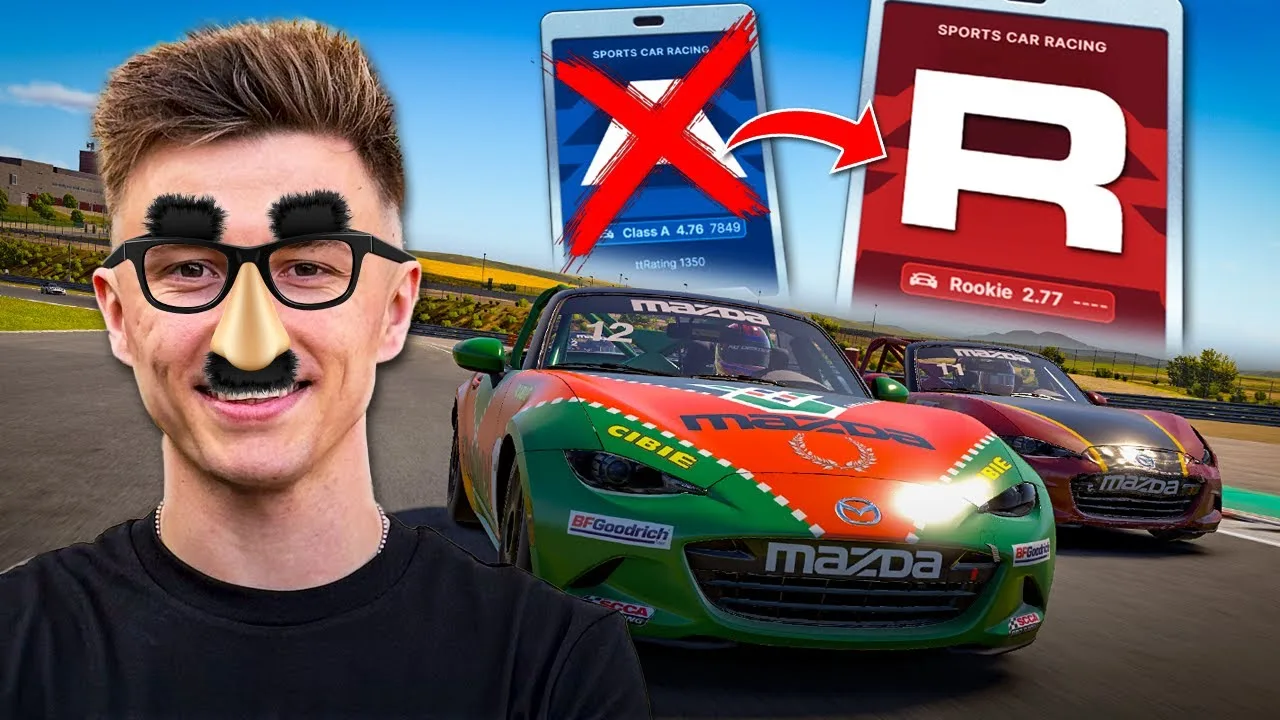
Rookies begin with 2.5 Safety Rating. To reach Class D, achieve 3.0 Safety Rating and complete the Minimum Participation Requirement:
- Two qualifying official ranked races, or
- Four qualifying Time Trials
A ranked race needs enough participants to receive Official status and count toward race MPR and iRating.
Promotion becomes available when you meet both Rookie requirements. You cannot be demoted back to Rookie afterward.
Keep racing the cars you enjoy after promotion. A higher license opens eligibility; it does not require you to immediately enter a faster series.
Handle Your First Official Race
12. Register deliberately and join the race session
When you are ready, open your chosen series and register for the next race. Race registration also places you in an Open Practice session while you wait.
Joining that practice server does not mean the race has started. When the race session becomes available, use the Join prompt to move into it.
If you cannot race, withdraw before registration closes. Once you have been assigned to the race, forfeiting or failing to participate can cost iRating.
Before gridding, confirm your controls, mirrors, spotter, and Relative display work. Check the session rules for the start procedure, penalties, and incident limits.
13. Practice starts and leave room through the opening corners
Rehearse the start procedure for your car in AI Racing. For a standing start, keep the car stationary until the start signal. For a rolling start, follow the pacing instructions and maintain your assigned position.
Approach the opening corners with extra braking margin. Cars ahead can slow earlier than expected, and traffic compresses quickly.
When racing side by side:
- Leave room for the other car.
- Avoid reactive blocking.
- Keep your movements predictable.
- Wait for a passing opportunity you can complete under control.
- Lift when a developing crash removes the space ahead.
Qualify and experience grid starts instead of making pit-lane starts your default. Rookie races give you opportunities to learn traffic management alongside other developing drivers.
Recover From Spins Without Causing Another Crash
14. Hold the brakes and wait for a safe gap
After a spin, hold the brakes so your car stays predictable. Avoid immediately reversing or rolling across the racing line.
Check your Relative display, mirrors, and surroundings before moving. A time gap helps you judge approaching traffic, but also consider your position and how long recovery will take.
Rejoin when you can do so without forcing another driver to avoid you.
15. Understand repairs before you need them
Check whether the event provides a fast repair and select it when appropriate. For a short race where you already have enough fuel and usable tires, deselect unnecessary refueling and tire replacement to avoid extra service time.
Slow to the pit speed limit before the controlled section begins. Use the limiter when the car has one, monitor your speed, and follow the marked pit entry and exit routes.
The Car Damage Widget became available for all cars in 2026 Season 4 Patch 1. Use it alongside damage reports to assess the car after contact. Follow any required-repair instructions rather than continuing with a car you cannot control.
Improve Your Pace and Plan Your Next Purchases
16. Review the laps that cost you time
After a race, examine average lap time, incidents, and time lost recovering. One quick lap can hide several costly mistakes.
Compare your clean laps with drivers racing the same combination under comparable conditions. Then choose one problem to work on: a missed braking marker, a slow corner exit, or an unnecessary steering correction.
Save useful replays and watch incidents from multiple cockpit and external views. Look for decisions you can change next time, including how early you noticed trouble.
If you use the driving line while learning a circuit, replace it with trackside markers as you become familiar with the layout. Other cars can obscure the overlay in traffic. Practice recognizing braking boards, curbs, and surface changes independently.
17. Buy content around the racing you will actually do
Once you know your next series, inspect its schedule and identify the car and tracks you need. Prioritize content you will use repeatedly.
Volume discounts provide 10% off three to five items and 15% off six or more items. Plan purchases around missing content instead of adding unwanted items to reach a discount threshold.
Eligible series also offer participation credits for meeting their seasonal requirements, including participation across eight of 12 weeks. Check the program’s series and completion conditions before planning around those credits.
Keep additional software optional while you learn. Built-in timing displays, spotter tools, and interface widgets already cover essential race information. Add overlays or telemetry tools as you learn, and try iRacing’s standard setups before paying for alternatives.
Continue exploring
iRacing iRating Explained: How to Gain Rating Faster
Learn how iRacing iRating works, what changes your score, how it differs from Safety Rating, and how to improve your race results with consistent driving.
iRacing Licenses: How to Move From Rookie to Class A
Learn how iRacing licenses work, including Safety Rating, promotion requirements, demotions, and a practical Sports Car route from Rookie through Class A.
Join the community
Official channels for news, updates and player help: