
iRacing Download Guide: Install on PC and Start Racing
Get your iRacing download started with PC requirements, direct and Steam installation steps, membership costs, and fixes for common client update problems.
Jump to
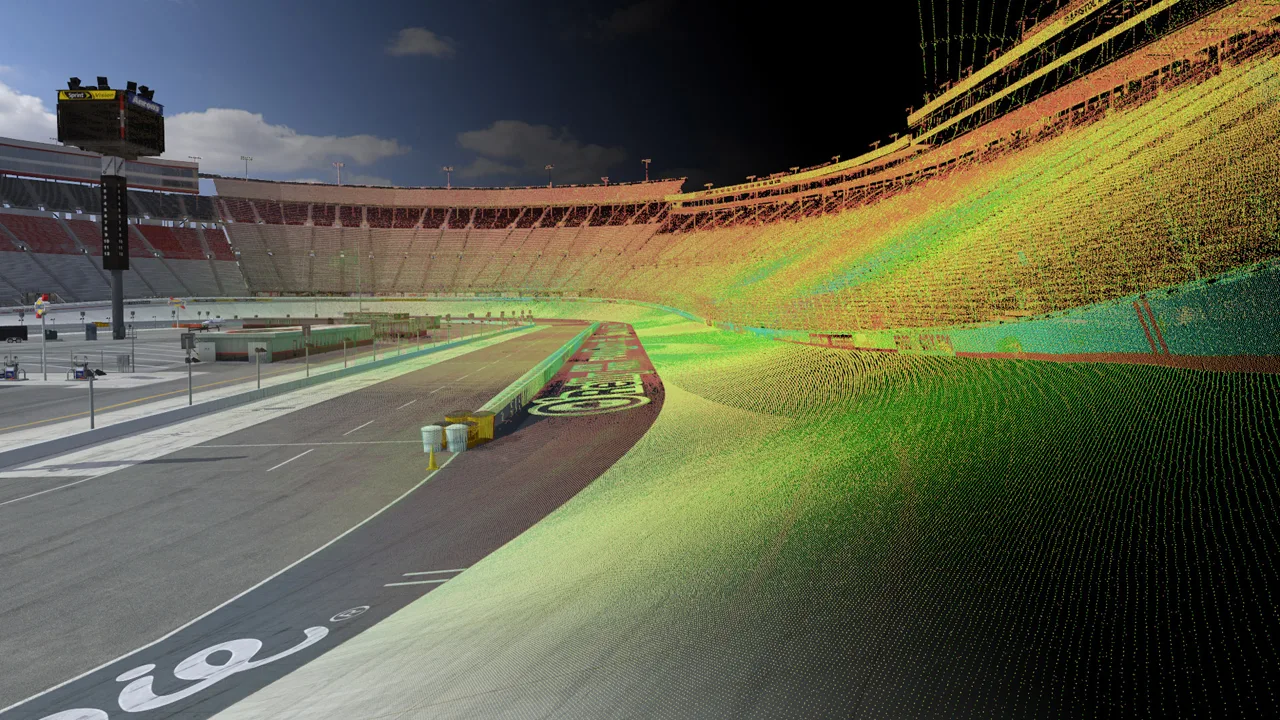
How to Download and Install iRacing
Your iRacing download starts with a membership through the official website or Steam. Choose your account route before paying, because Steam accounts and accounts purchased directly through iRacing cannot be combined. Once you have access, install the software, complete the required updates, and launch a solo test session to configure your controls.
Install directly through iRacing
For a new account, start with the iRacing membership page. Buying directly keeps your subscription and installation under the same service without adding Steam to the process.
- Choose a membership term and create your account. Review the checkout total and automatic renewal terms.
- Sign in through the official website. Follow the getting-started prompts to reach the software download.
- Download and run the installer. Complete the installation prompts, including any required software components.
- Open the iRacing application and sign in. Finish the initial setup.
- Install all required updates. Download the car and track content you plan to use.
- Launch Test Drive. Select an included car and track, then configure graphics and controls before driving.
Older installation instructions show a browser-based member interface. The desktop application handles browsing series, joining sessions, and managing content, so follow its current prompts when button locations differ.
Install through Steam
If you choose Steam, use the iRacing Steam page and review the subscription terms before purchasing.
- Install Steam and sign in.
- Purchase an available iRacing membership option.
- Open your Library, select iRacing, and choose Install.
- Launch it after installation finishes.
- Complete the account setup prompts and any remaining required updates.
Already have an account? Keep using that account’s purchase route. Steam introductory pricing applies to new accounts, and purchasing another membership does not merge an existing direct account with a Steam account.
PC Requirements and Storage Space
iRacing runs on Windows. Its PC version has no native macOS or Linux release.
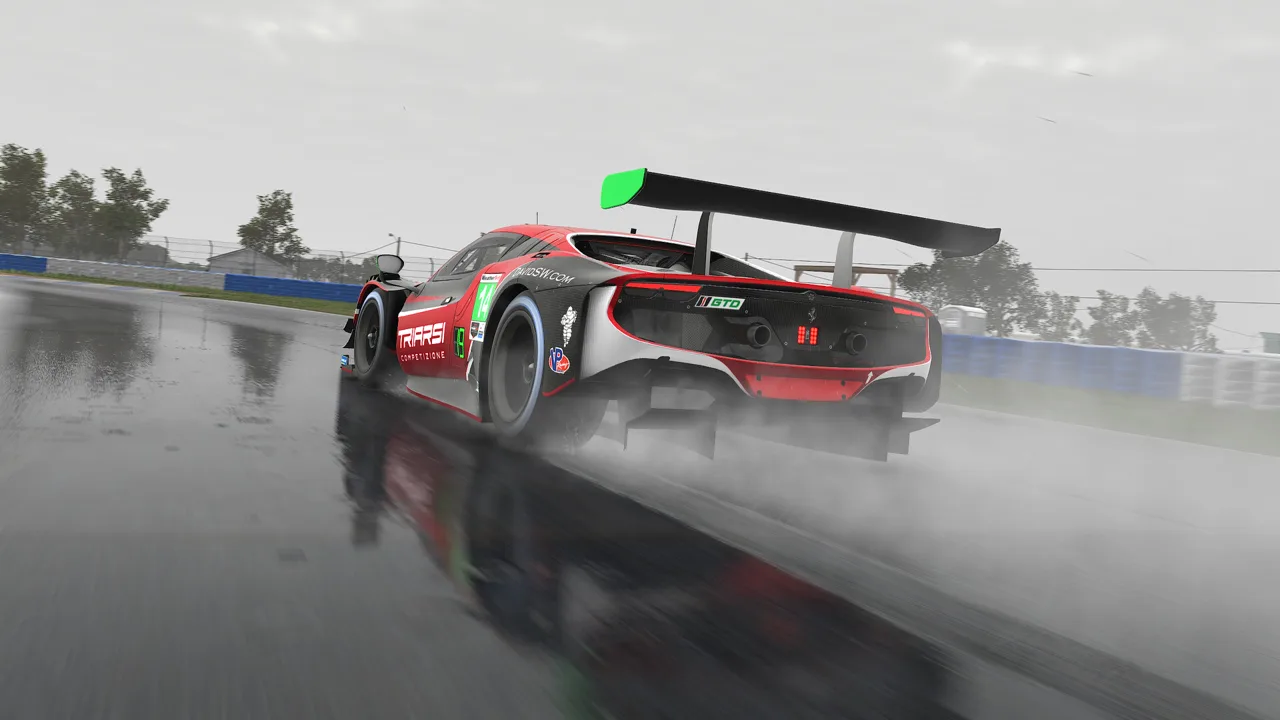 Image: Steam / iRacing.com Motorsport Simulations
Check your hardware before buying a membership, especially if you plan to use VR or multiple monitors.
| Component | Minimum | Recommended |
|---|---|---|
| Operating system | Windows 11 64-Bit | Windows 11 64-Bit |
| Processor | 4 core CPU or better | 8 core or more CPU |
| Memory | 16 GB RAM | 32 GB RAM |
| Graphics memory | At least 6GB of dedicated memory | At least 8GB of dedicated memory |
| DirectX | Version 11 | Version 11 |
| Available storage | 25 GB | 100 GB |
| Connection | Broadband Internet connection | Broadband Internet connection |
Minimum processor examples include the Intel Core i5-6600, Intel Core i7-4790, and AMD Ryzen 3 4300G. Minimum graphics examples include the Nvidia GeForce GTX 1070 and RX 5600XT.
How large is the installation?
There is no single download size for every installation. Required files, selected cars and tracks, and the installation route affect how much content you receive.
Do not read the 25 GB minimum storage requirement as the size of the complete catalog. A large content selection needs substantially more space. Use the installer’s displayed requirement when choosing a drive.
In iRacing’s downloader, Select Owned includes required updates and content attached to your account. Review that selection before starting a large download; you can add optional content later.
Membership Costs and Included Content
iRacing requires an active subscription. Installing the software does not provide permanent access through a one-time purchase.
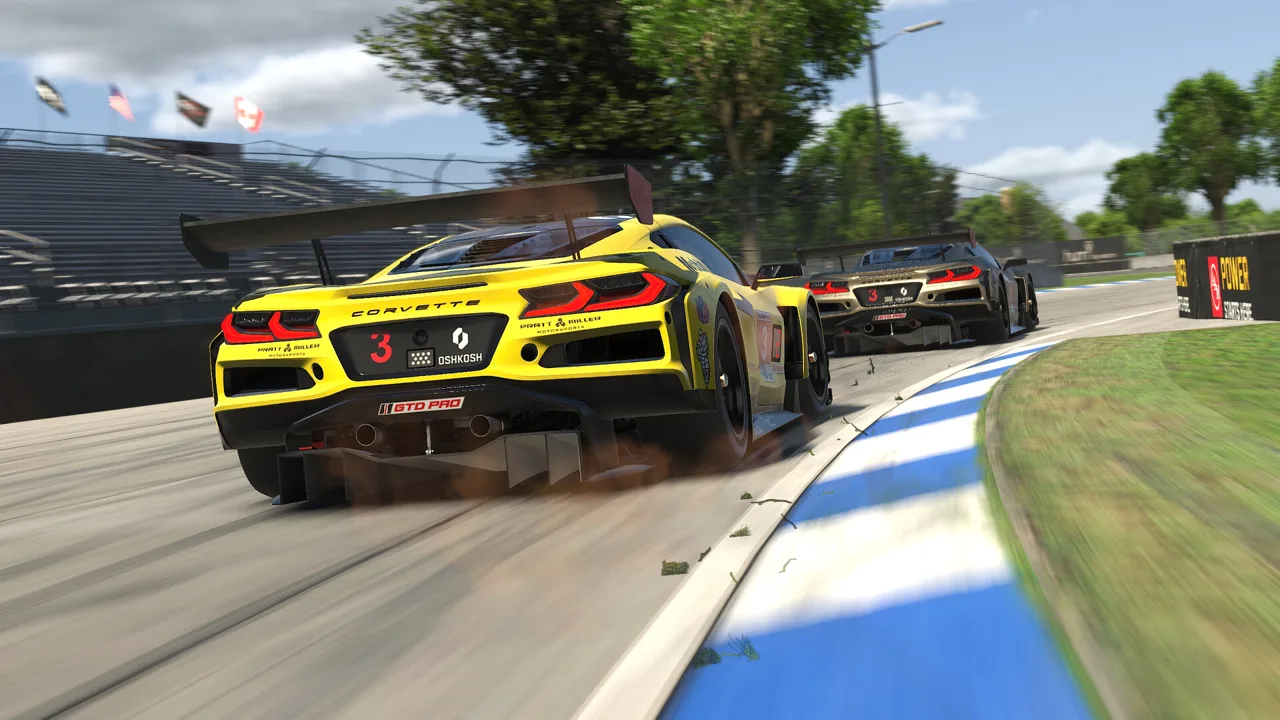 Image: Steam / iRacing.com Motorsport Simulations
Regular direct membership prices are:
| Membership term | Regular price in USD |
|---|---|
| 1 month | $14.75 |
| 3 months | $37.50 |
| 1 year | $124.50 |
| 2 years | $222.50 |
The Black Friday promotion gives new direct members 40% off those terms, including one month for $8.85 and one year for $74.70. Review the final price, taxes, and renewal terms before paying.
Direct accounts automatically renew when created or renewed. You can turn automatic renewal off in your account settings without a penalty.
Do you need to buy cars and tracks immediately?
Your membership includes 29 tracks with over 85 configurations. All cars and tracks required for official Rookie class races are included.
Additional cars and tracks cost extra.
Start with an included Rookie series before buying a season’s worth of tracks. When you decide to move into another series, open its schedule and identify the car and tracks you actually need. Owning a faster car also does not bypass the license requirement for its official races.
Configure Your Controls Before Driving
Open a solo test session to finish setup without other drivers around you. Choose an included car such as the Global Mazda MX-5 Cup and an included track.
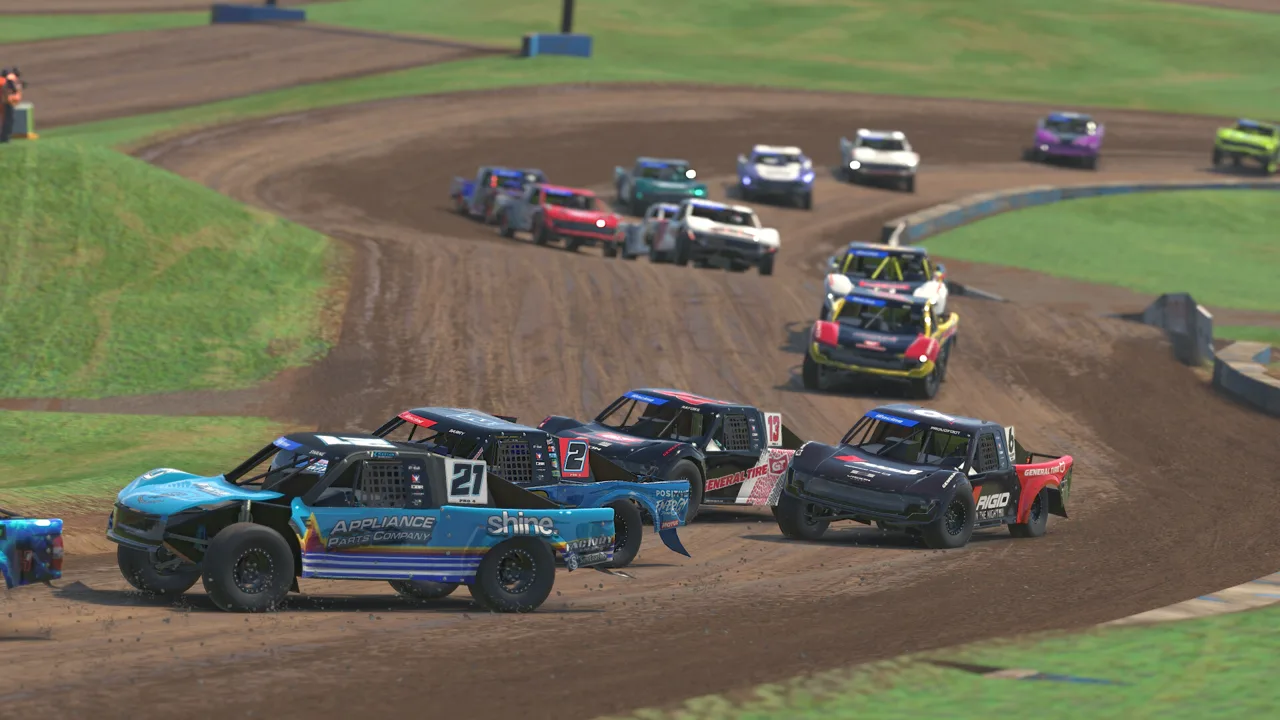 Image: Steam / iRacing.com Motorsport Simulations
Run the graphics configuration when prompted, then open Configure Controls.
- Steering: Follow the calibration prompts through the wheel’s range and center it carefully.
- Throttle and brake: Calibrate their full travel and release them as directed.
- Shifting: Assign your paddle shifters or configure your H-pattern shifter.
- Enter/Exit/Tow: Assign an accessible button that you will not press accidentally.
- Look left and right: Bind these if you need them for visibility on a single monitor.
- Relative display: Assign a button so you can quickly check nearby cars and their time gaps.
A wheel and pedals provide more control over steering and braking, but a gamepad is supported. You do not need a high-end direct-drive wheel to begin.
Set readable graphics and manageable force feedback
Start with the graphics configuration, then adjust your screen resolution and field of view. Keep mirrors and the Relative display visible.
For a force-feedback wheel, enter the correct wheelbase force when required. Drive several clean laps before using the automatic force-feedback adjustment, then reduce the strength if it feels excessive. Aim for feedback you can interpret comfortably.
Press Alt K to reposition interface elements. Move anything blocking your view, then leave the essential driving information somewhere you can glance at quickly.
Get From Test Drive to Your First Race
The Official section contains both practice sessions and scheduled races. Read the session type before registering.
Use eligibility and owned-content filters to narrow the choices to events your license and content allow you to enter. Open a series to see its current car, track, schedule, and available sessions.
Follow this order:
- Test Drive: Learn the circuit alone and confirm your controls work.
- Open practice: Drive around other people and practice leaving space.
- AI Racing: Rehearse starts and traffic with a supported car and track combination.
- Scheduled race: Register when you can drive predictable laps and handle the car consistently.
Launching Test Drive from a series lets you practice with that event’s conditions. Use it when you want preparation that matches the race more closely than a separately configured session.
Safety Rating measures how safely you drive, while iRating supports skill-based matchmaking. Focus on keeping the car under control and finishing cleanly as you learn.
If you register for a race and change your mind, withdraw before the registration countdown ends. Missing a ranked race after assignment can cost iRating.
Fix Update Loops and Launch Problems
The application keeps asking for an update
Finish the required updates before selecting optional downloads. Then confirm that the car and track for your intended session are installed.
For a Steam installation, avoid starting downloads in Steam and iRacing’s updater simultaneously. If Steam’s update process stalls, try completing the update through the installed iRacing application, close it afterward, and return to Steam.
A recurring update prompt does not automatically mean you need to delete and reinstall the entire simulator.
Steam displays “content file locked”
Close the simulator before retrying the update. For the specific locked-file error, follow the iRacing support instructions for Steam content locks, which address the iRacing Helper Service.
Installation finishes, but the simulator will not launch
Allow the installer to complete its required Microsoft Visual C++ redistributable installation. These components are necessary for iRacing to function.
Recheck the Windows and hardware requirements, then finish any outstanding required updates. If it still fails, open iRacing support with the exact error message and whether your account uses Steam or direct billing.
You cannot renew through Steam
Open Steam’s Account Details, then Manage subscriptions to review the subscription attached to your account. If the purchase interface fails in the Steam client, try Steam’s website.
Keep renewals with the account’s existing billing route. For a payment failure that persists, contact the relevant support team before purchasing a separate account.
Continue with
 iRacing Steam Guide: Subscriptions, Setup, and CostsCompare iRacing Steam and direct memberships, understand subscription costs and account limits, and get help with installation, renewals and update issues.
More in Access
See all Access
Continue exploring
Join the community
Official channels for news, updates and player help: